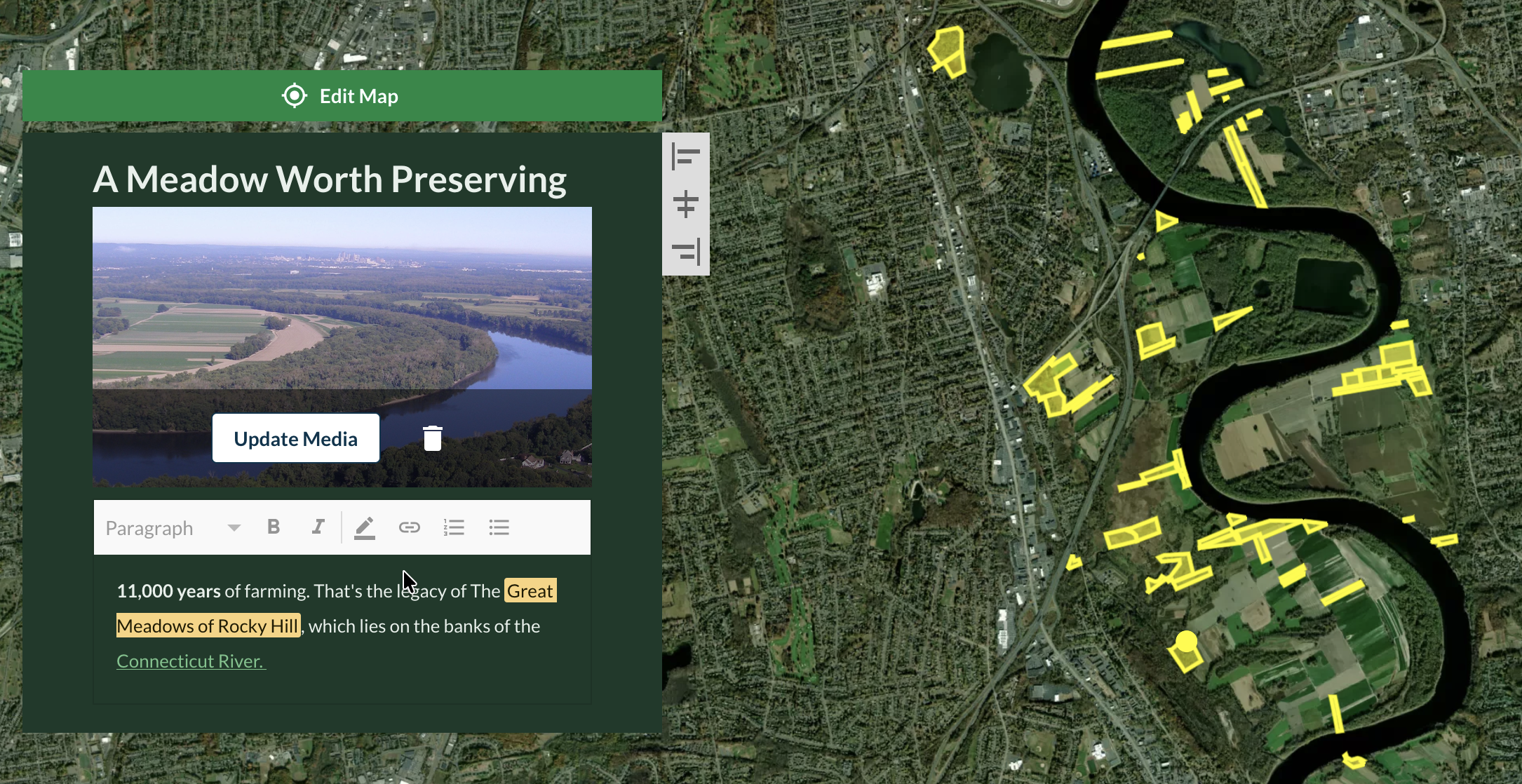
You have a map file you want to present as a map. The file contains important information such as the locations of your project’s stakeholders, the boundaries of a community territory, or the route taken by migrant workers displaced by drought. This guide will help you present that map file in your story map as a map layer.
Choose a map file
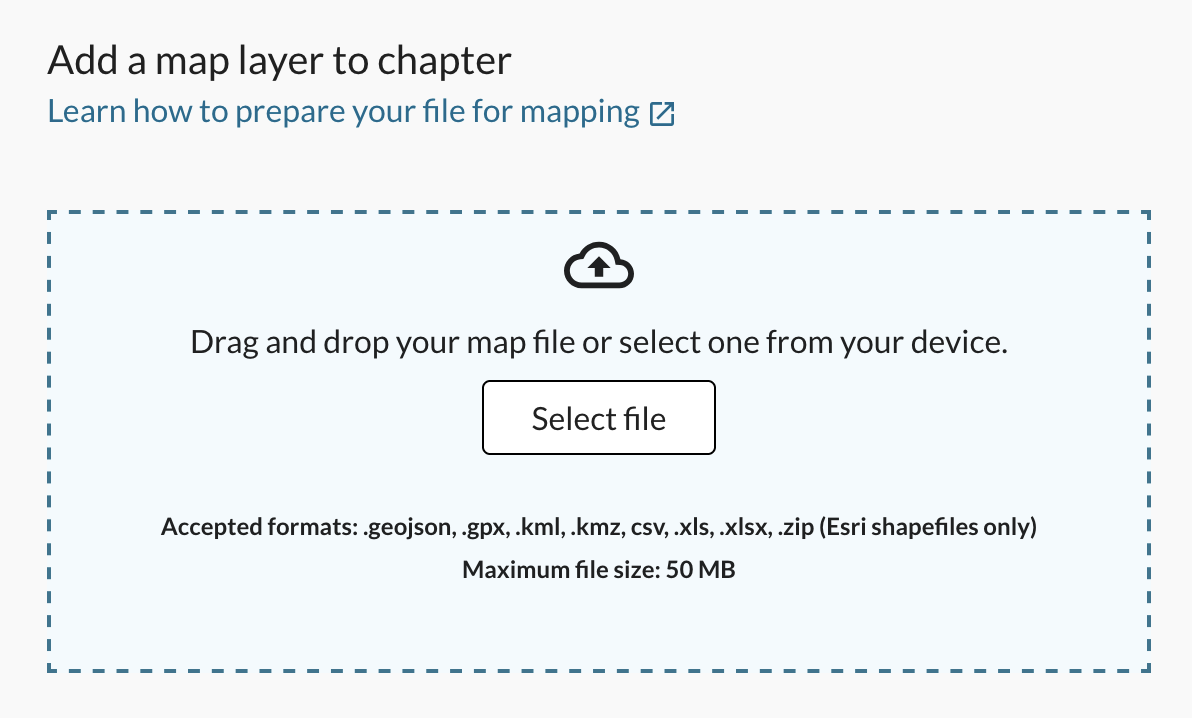
Upload one of our supported map file formats. Don’t have a data file? Follow our guide to make one.
Upload map file
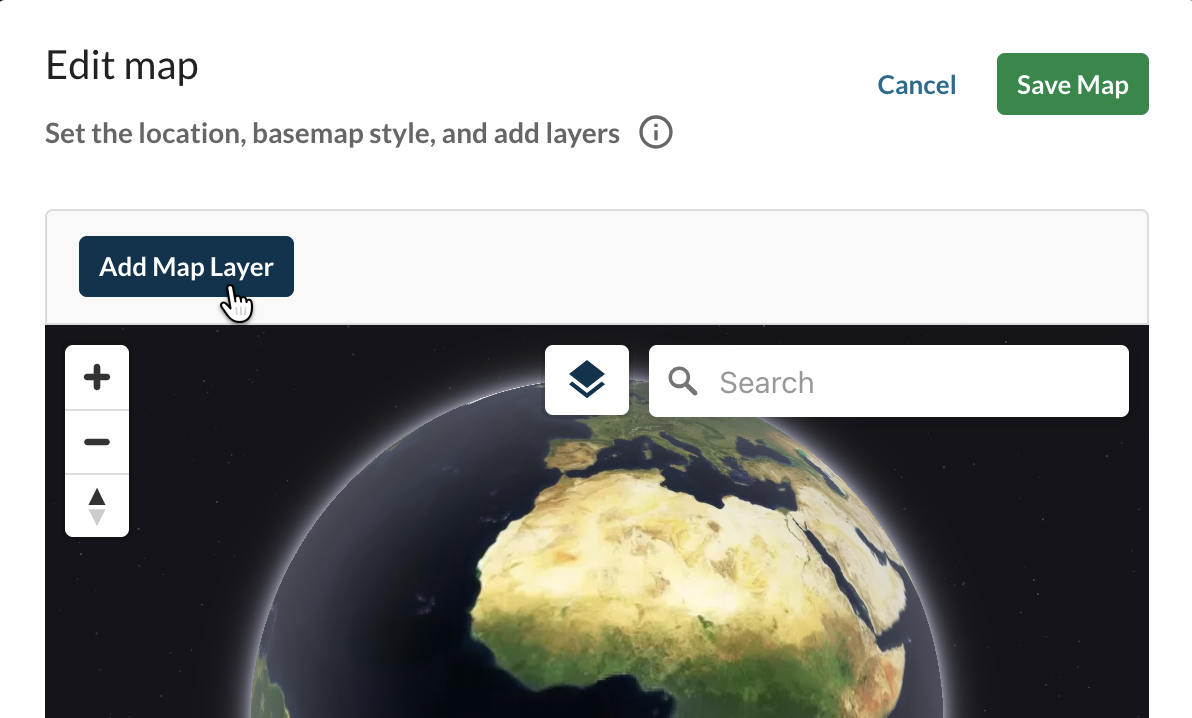
While editing a chapter in a story map, click on “Edit Map” and then select “Add Map Layer” in the map editor.
Click on “Select file” and choose a well-formatted map file or drag and drop one into the file picker.
Customize map layer
Define how the data layer will appear on a story map:
- Title: name the in order to refer to it later
- Latitude & Longitude: (CSV/Excel only) the locations for each point to be represented on the map. Use the drop down menu to select a different column.
- Polygon opacity: (Spatial file only) the level of transparency of shapes
- Symbol shape: choose a shape to represent each point
- Symbol size: choose a symbol size
- Symbol color: adjust the color of each point
- Base map: change the background map for this data (this will impact the base map for the entire story).
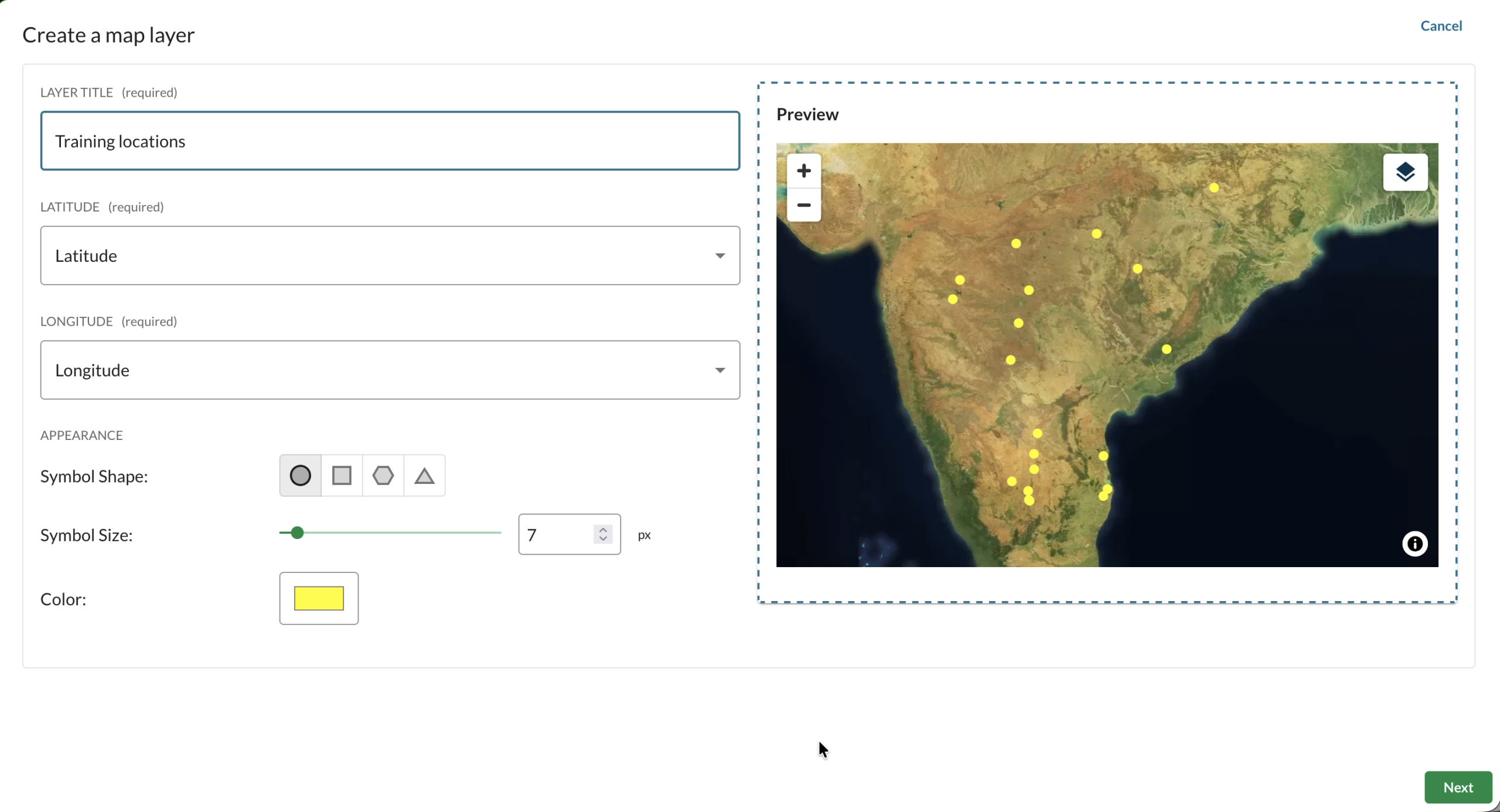
Once you have added a map layer, you can edit the map and can adjust the view of your map layer.
Use previous map layers
Once you create a map layer, you can use it again in another chapter. Click “Add Map Layer” and select a map from “This Story Map” tab.
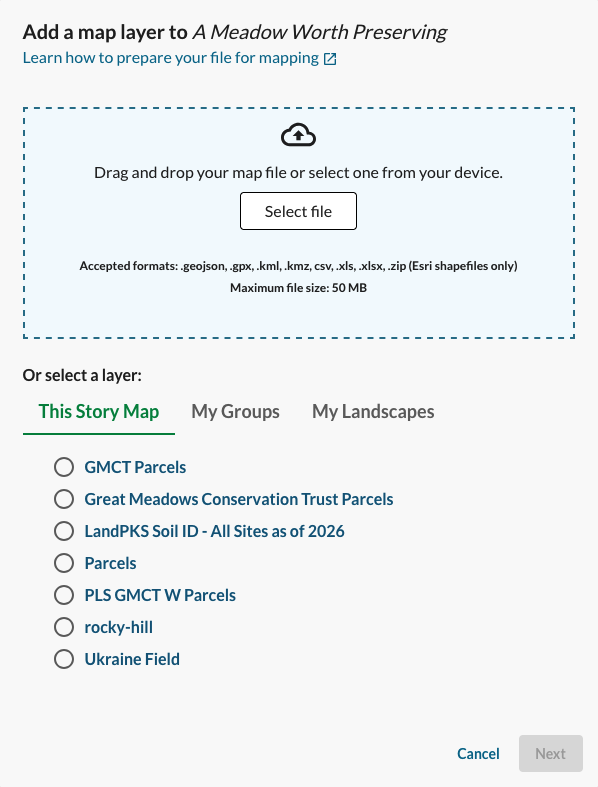
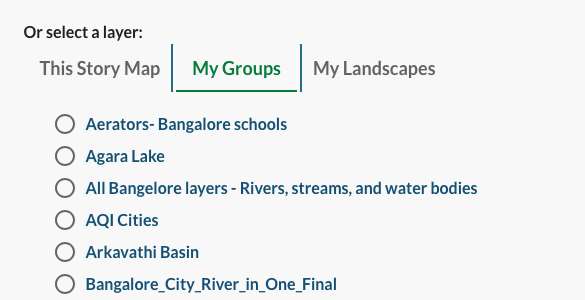
Add a map layer from groups or landscapes
Add maps from your groups or landscapes. Click “Add Map Layer” and select a map from one of your communities.