Once you have finished your story map and provided a featured image and description for link viewers, publish your story map to share it with the world.
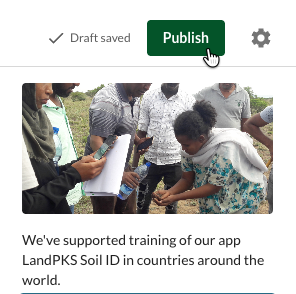
In the story map editor, click “Publish” to make your story map visible to anyone with the link.
Story maps can also be published from the story map dashboard. Any editor can publish a story map.
Sharing a published story map
Click the “Share” button in your story map dashboard, the right-hand sider bar in the story map editor, or on the published story map to share your story map. Clicking the “share” button opens the share window.

Direct share: Choose start email or create a post in WhatsApp or Facebook.
Link to share: Copy a URL to share with your audience on your platform of choice.
Copy embed: Copy HTML code so your audience can view your published story map in your own website. Viewers will have the option view the full screen map.

Updating a story map
If you edit your story map after publishing, those changes will be saved as a draft. Click “Publish” again to release draft changes.