Landscape boundaries let the world know where your landscape is. Landscape managers can define the landscape boundary when they add the landscape to Terraso Story Maps or update it later on. There are three ways to define the landscape boundary, which you can read more about below:
- Upload a map file
- Draw a landscape boundary
- Drop a pin
Upload a map file
Upload a supported map file in .geojson, .gpx, .kml, .kmz, or .zip format.

Draw a landscape boundary
Use Terraso Story Maps’ landscape boundary tool to draw your landscape boundary.
Tip: If you don’t know where the boundary of your landscape lies, you can learn how to create it through ILM practical guide.
- Find your landscape’s general location on the map. You can either:
- Use the search bar at the top of the map. Start by typing in a city, town, region, or even an exact address.
- Use your mouse/trackpad to drag the map and zoom in/out.
- Begin drawing your landscape boundary.
- Click the polygon tool on the left side of the map. Now, when you click on a spot on the map, the tool marks that spot as part of your landscape boundary.
- Continue drawing your landscape boundary by clicking on the map, and move/zoom in/out around the map as needed.
(Note: your goal should be to draw the rough outlines of your landscape first. Details will come later.)
- Finish your boundary drawing, either by
- clicking on the first point you made, or
- clicking on the last point you made.
Make sure you click the “Add Landscape”/”Update” button below the map to upload your landscape boundary to your Terraso landscape page!

Tip: Is your landscape made up of multiple disconnected areas? No problem. Terraso supports landscapes with multiple boundary shapes.
Drop a pin
To leave a basic idea of your landscape’s location, simply drop a pin somewhere near the geographic center of the map.
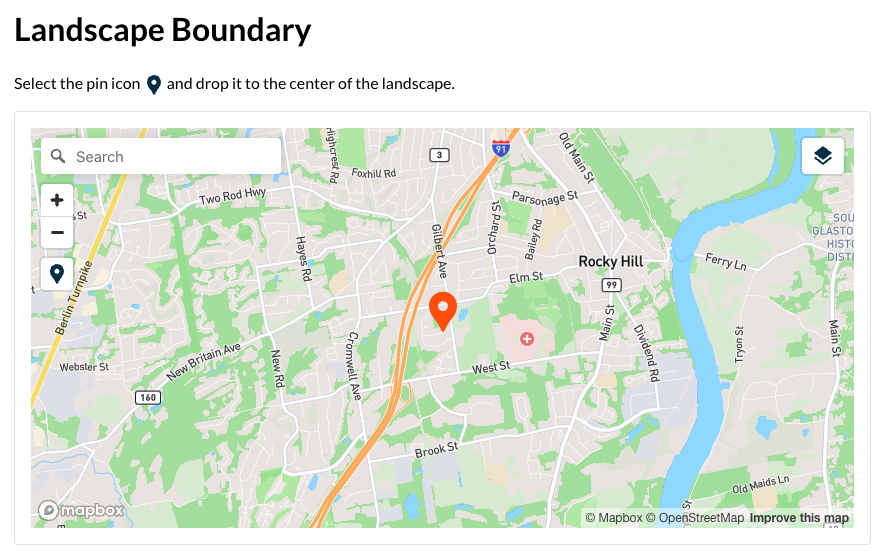
If you choose to not provide a landscape boundary, the map will focus on the country where the landscape is based instead.
Editing your landscape boundary
If you ever need to change your landscape boundary, sign in as manager of the landscape and click “Update Boundary” to make changes or to delete and start again.
Deleting your landscape boundary
Select the shape you wish to delete. Click the “Delete Polygon” icon button on the left side of the map. Your shape should disappear.
Click “Update” to save your changes to Terraso or draw a new shape.