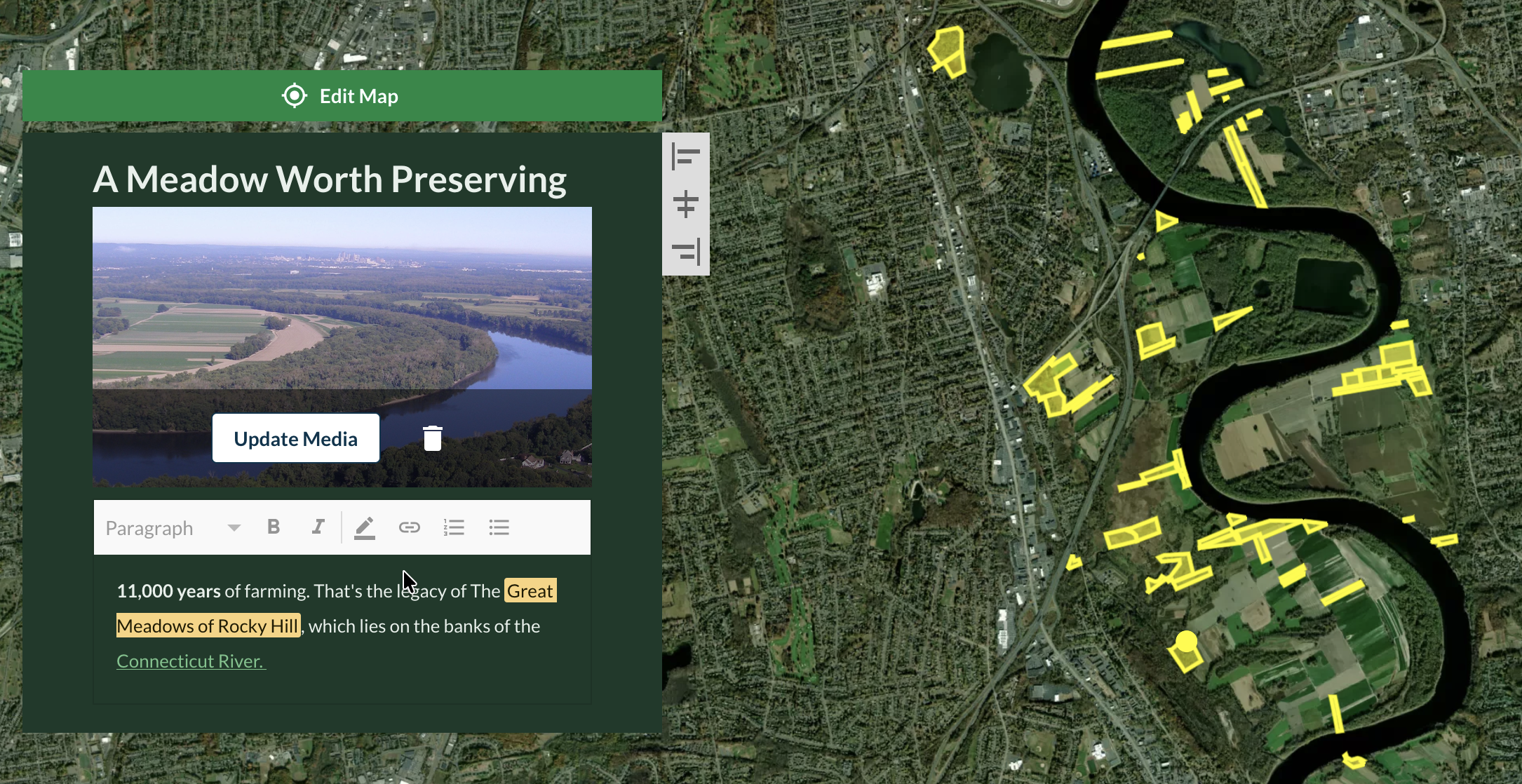
Chapters are the building blocks of your story map. Each chapter combines text, media, and a map location to tell part of your story.

Chapters appear in the left sidebar menu.
Add a chapter
Click “Add new chapter” to create a new chapter. Each new chapter inherits the location of the previous chapter.
Delete a chapter
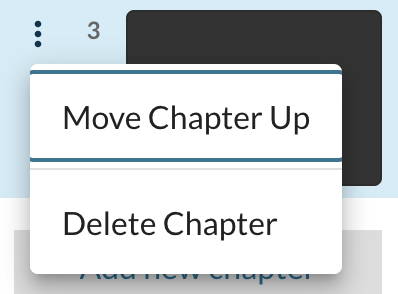
Click on the triple-dot icon next to a chapter to open the chapter menu. Click on “Delete Chapter” to remove it from your story.
Reorder chapters
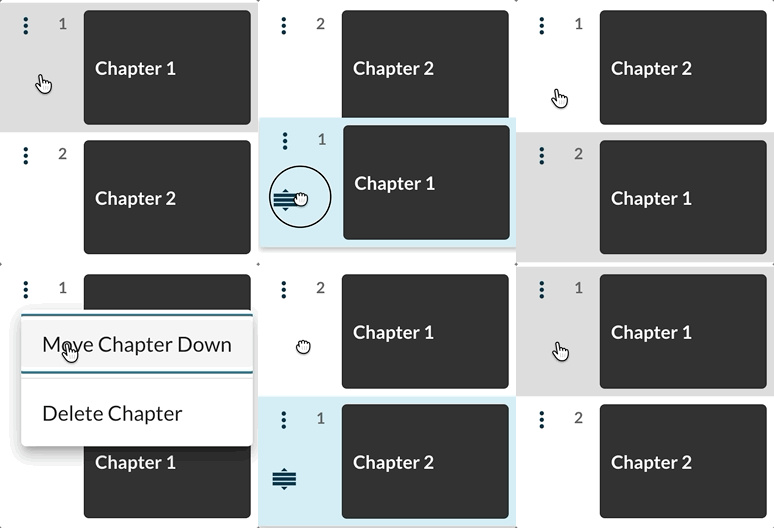
Click and drag on chapters to change their order. Alternatively, click the triple-dot icon next to the chapter and select “Move Chapter Up” or “Move Chapter Down”.
Add a title
Give the chapter a name. This will show up on the left sidebar chapter menu and in the table of contents at the top of your story map. Chapters without a title will not display in the published story.
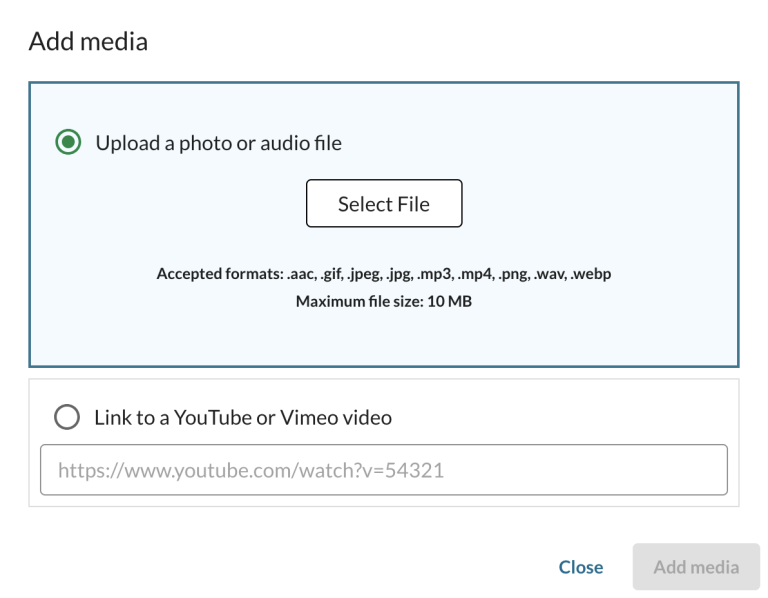
Add media
Add images, videos, or audio to your chapter. Supported formats:
- Images: JPG, PNG, GIF, WebP
- Video: MP4
- Audio: MP3, WAV
Link to YouTube or Vimeo videos by copying and pasting the video URL. Terraso will embed the video directly in your chapter.
After adding media, select “Update media” to choose new media or click on the “Trash” icon to delete it.
Alt text – Add alternative text for images to make your story accessible to screen readers and improve search visibility.
Add text
Use the rich text editor to add text to your story map chapter. Options include:
- Style (Paragraph or Header)
- Bold
- Italic
- Highlight
- Link
- Numbered List
- Bulleted List

Justify chapters
Choose where the chapter appears on the screen: left, center, or right. Except when a chapter is centered, Terraso Story Maps will shift the background map to keep the location you select in view.

Left

Center

Right