Maps are powerful tools to visualize data. Use Terraso Story Maps to turn a data file into a map you can share with your collaborators and publish in a story map.
Upload a map file
Maps in groups and landscapes are built from map files. Prepare a well-formatted map file and share it in your group or landscape.
Once you’re ready, select “Make Map” in your group or landscape to begin the process.
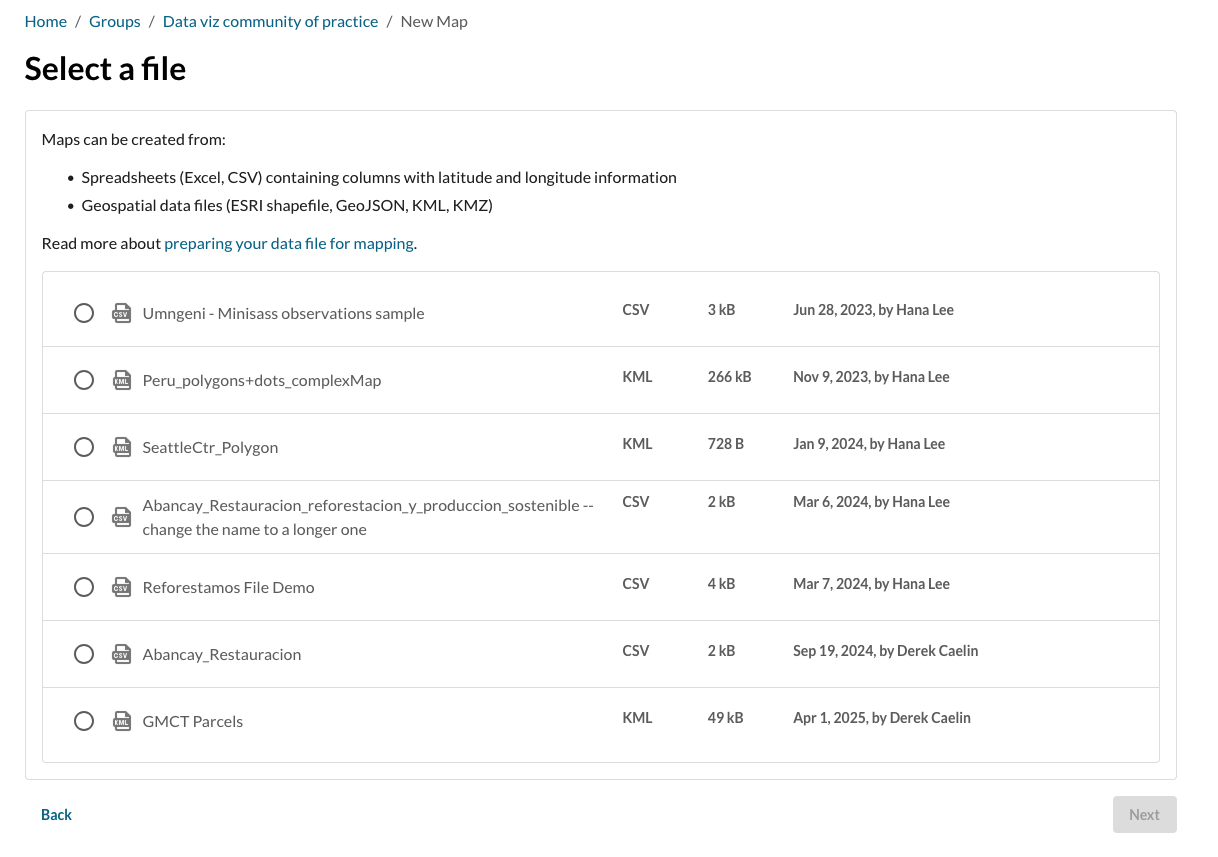
Select a map file
A list will appear. Review the file names and descriptions and choose which file to be made into a map.
When a file has been chosen, select “Next”.
Choose information to display
If the file selected is a CSV or Excel file, select the columns that contain information to be displayed in the map.
- Latitude and Longitude: Terraso will try to select the columns that contain location information. Choose which columns contain latitude and longitude information.
- Columns to Display: Choose to display all columns of data in your file, or specific columns of information. Use the drop down menus to select which columns are most important to show on your map.
Use the “Preview” window to review which data is relevant. Terraso will display the first 3 rows of the spreadsheet’s data.
When finished, select “Next”.

Customize appearance
Customize the color, size, and symbols of the data on the map. If the data file contains points, choose a representative symbol. If the file contains polygons, customize the transparency.
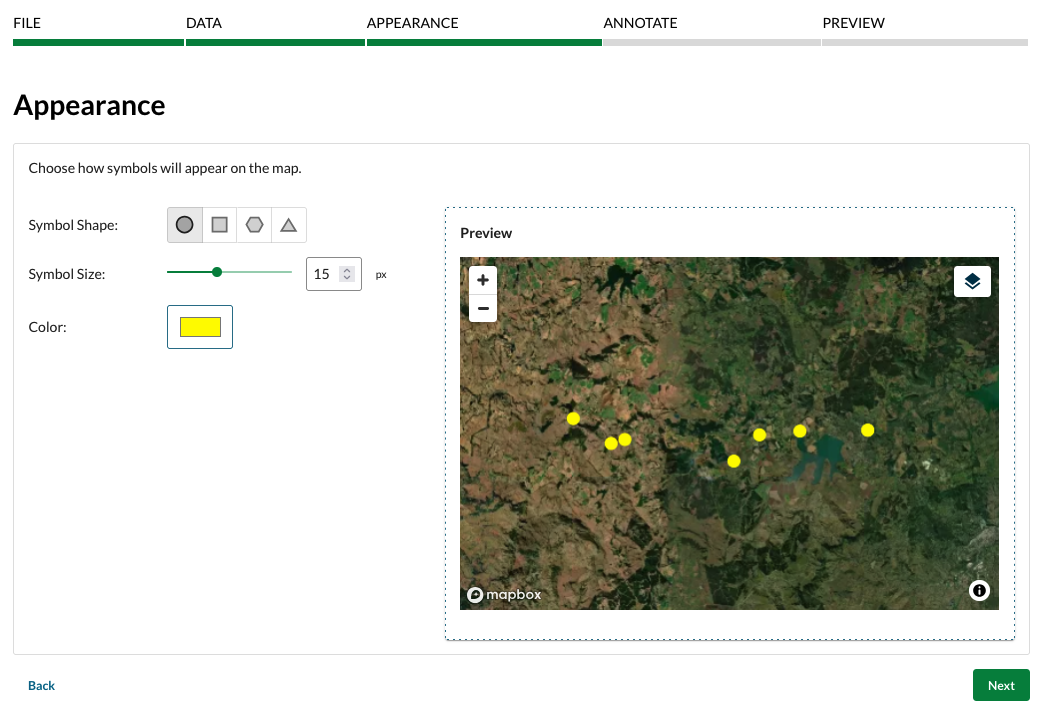
When finished, select “Next”.
Annotate
Provide additional information to the viewer and customize how the map displays data.
Title: the name of the map (required)
Description: an explanation of what the map is about (optional).

Pop-ups (CSV / Excel only)
When viewers click on points in maps made from CSV and Excel map files, a pop-up displays data about the location. Customize the pop-up by editing:
Title: Choose a data column that will represent the title of the pop-up that emerges when a user selects the data.
Order: Drag labels to reorder how information is presented on the pop-up.
When finished, click “Next”.

Preview
Customize the initial map zoom and location for viewers. By default, Terraso will pick a zoom and location that displays all the data. You can zoom in on an area of particular interest. Viewers will be able to adjust the pan and zoom.

When finished, select “Publish”. Congratulations, you’ve made a map!
After publishing
The map will be accessible to anyone in the group or landscape where it was created. Multiple maps with different styles can be made from one file.

Share a map
Click the “Share” button to obtain a link to share with colleagues.
Note: currently, the viewer must be a member of a group or landscape where a map is published in order to see the map.
Download a data file
Download the data file used to create the map by clicking the link next to “Source Data”. Download a picture of the map for reports by clicking “Download PNG”.
Delete a map
Only the creator of a map or a manager of the group or landscape can delete the map directly. Maps created from data files will be deleted if the data file is deleted.
Edit a map
It is not currently possible to edit a map once it has been created. Create a new map to replace an older one with a different style.

Use as a map layer in a story map
Maps made from data files can be added to story maps. Anyone who is a member of a group or landscape can add maps from that group or landscape into their stories. Story maps are public documents and can be seen by anyone.