Your Terraso profile stores your personal information and preferences.
Creating your profile
When you sign in to Terraso for the first time, you’ll be asked to provide your name and other preferences.
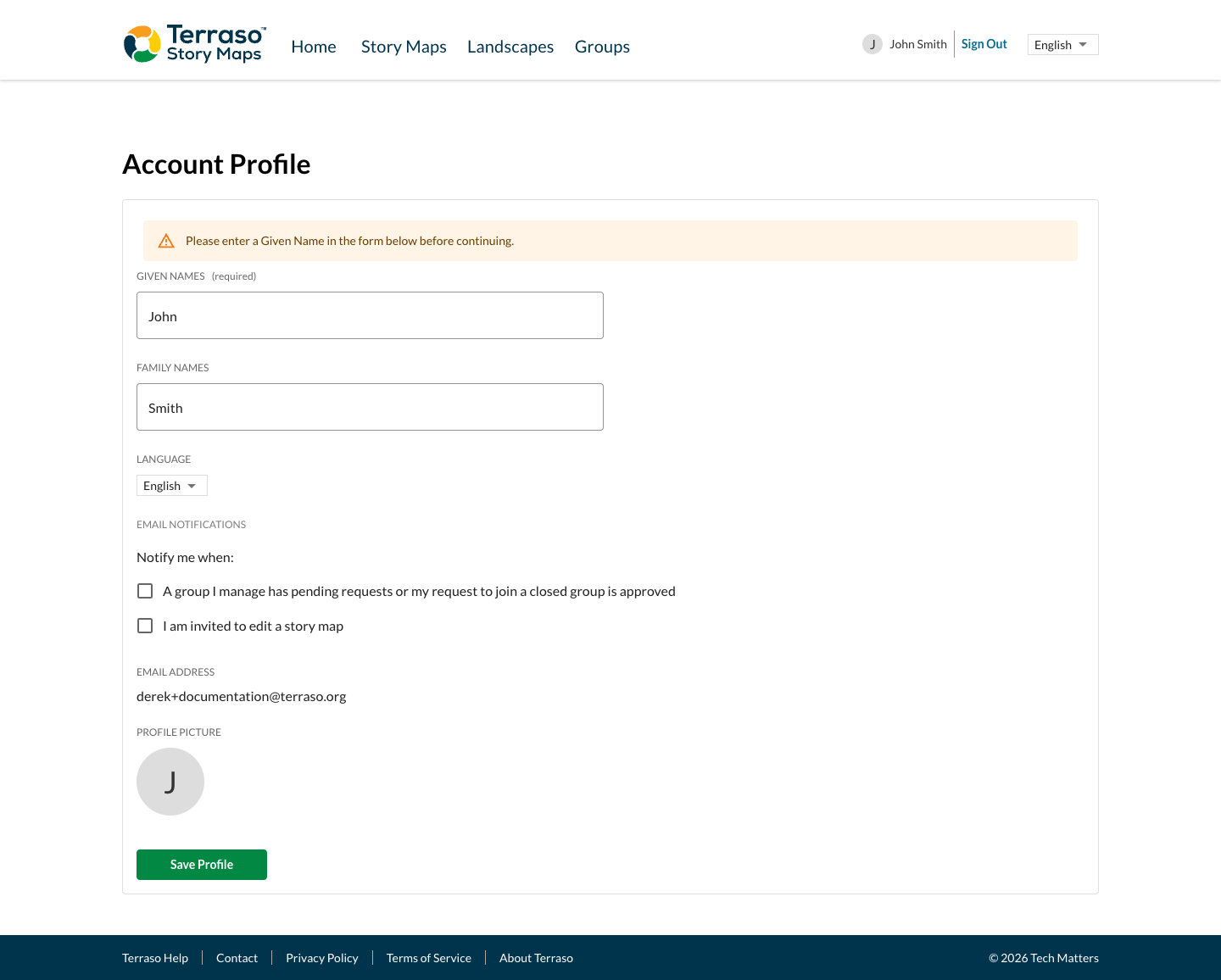
Enter your name, confirm your preferences and click “Save Profile” to continue.
Updating your account
Update your profile at any time. Click on your name in the header to update your personal information and preferences.
Account information and preferences
From the account page, you can manage the following:
Name
Update your given and family names as they will appear to other users.
Preferred language
Choose your preferred language for the Terraso Story Maps interface. Terraso Story Maps supports English and Spanish.
Notifications
Manage your email notification preferences for account activity, collaboration requests, and other updates.
Profile picture
Terraso automatically uses the profile picture from your SSO provider (Google, Microsoft, or Apple). To update your profile picture in Terraso, change it in your SSO provider’s account management settings. The change will appear in Terraso the next time you sign in.
Cross-app profiles
Your Terraso account powers other Terraso apps, including Terraso Story Maps and LandPKS Soil ID. Changing your name in Terraso Story Maps impacts all apps where your account is used.