Geospatial information is critical to telling stories with maps. This guide explains how to create map files through different processes like drawing on a digital map and collecting data through forms. Once you have a map file you’ll be able to share it with Terraso Story Maps or your mapping tool of choice.
Making maps by drawing
“Drawing” with simple online tools is the digital equivalent of marking up a physical map. Web-based tools like geojson.io display a base map and provide a way to place points, lines, and polygons on top of it. After drawing on the map, you can export the features in a map file.
Map drawing tools are especially useful when satellite information and the map maker’s knowledge together are sufficient to add features directly.
Drawing with geojson.io
Geojson.io is a free online tool for making and viewing maps.
Setup
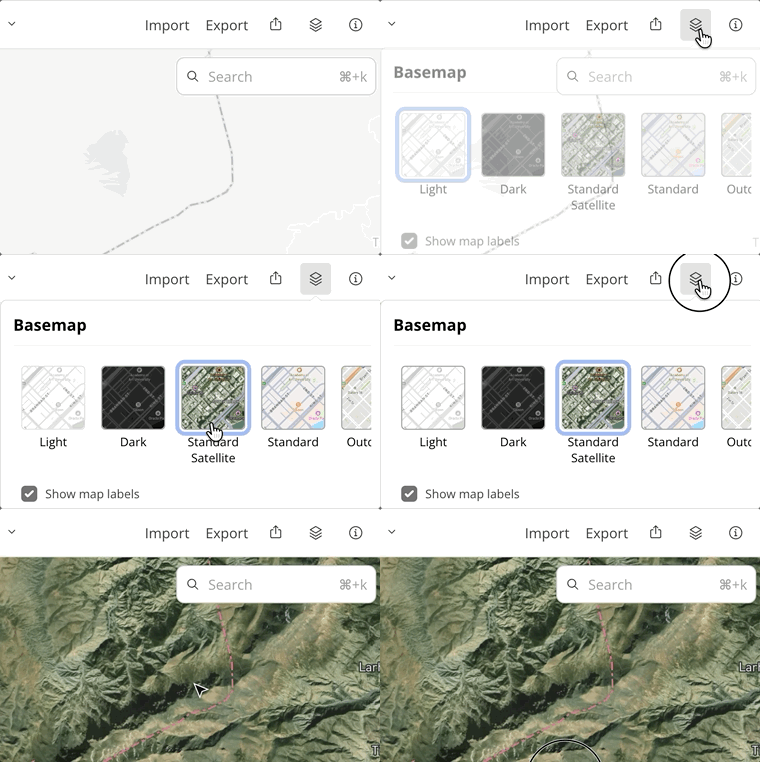
Go to geojson.io and start a new map (no account is needed). Optionally, select the satellite base map to see satellite imagery of the Earth. Zoom in on the area where you want to add features.
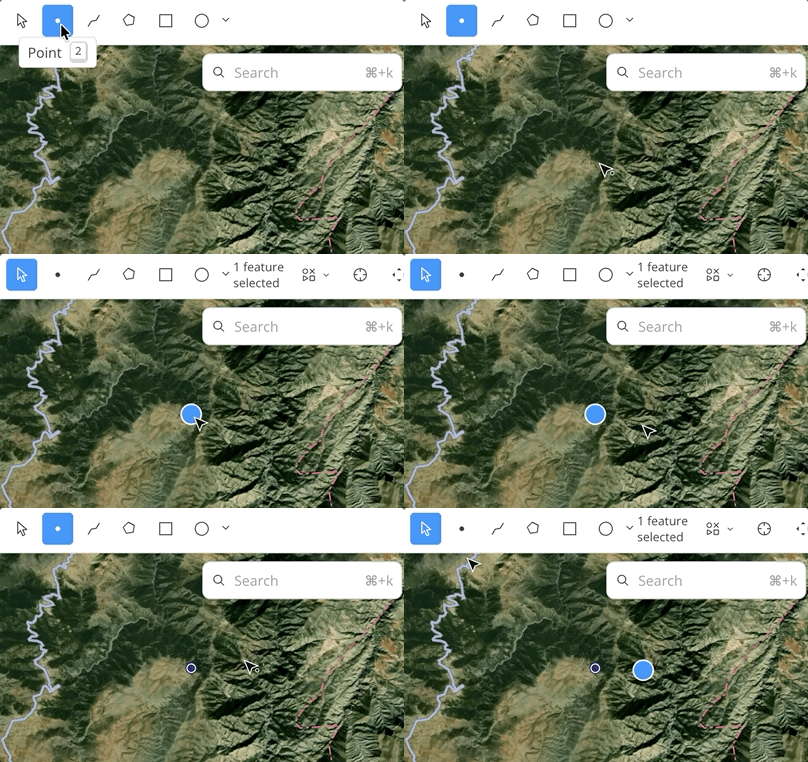
Adding points
- Click the “Point” tool in the toolbar.
- Click on the map where you would like there to be a point.
- Repeat until you have added all the features you want.
Adding lines
- Click the “Line” tool in the toolbar.
- Click on the map where you would like a line to start.
- Click another point to extend the line, repeat as needed.
- To end a line, double click where you want the line to end.
- Click and drag on points to adjust the line. Click on midpoints to add new points to the line for greater detail.

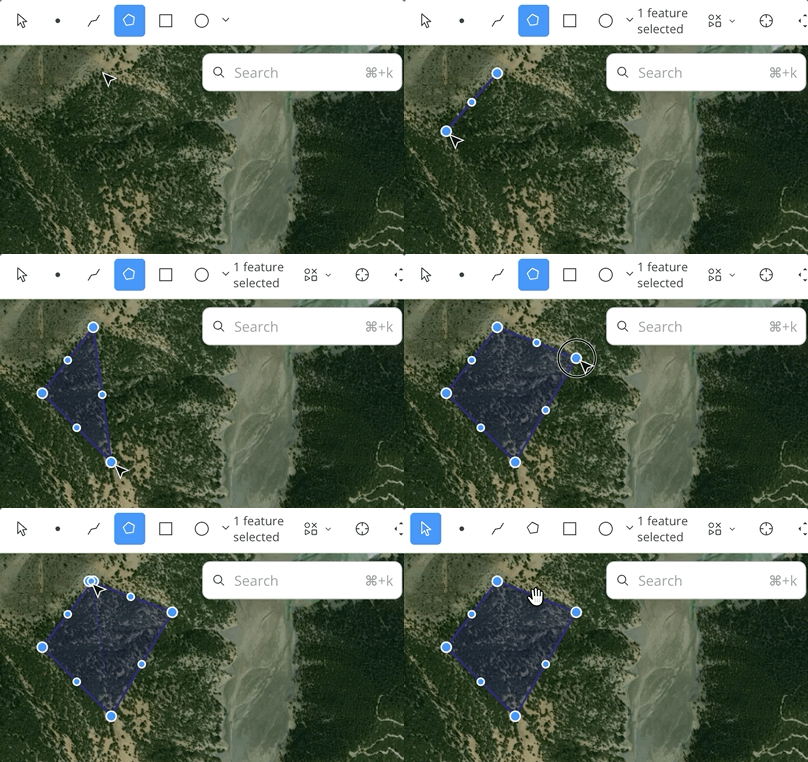
Adding polygons
- Click the “Polygon” tool in the toolbar.
- Click on the map on the edge of the place where you want to draw a shape.
- Click another point to continue the edge, repeat as needed.
- To close a polygon, click on the first point.
- Click and drag on points to adjust the polygon. Click on midpoints to add new points to the polygon for greater detail.
Adding data to features
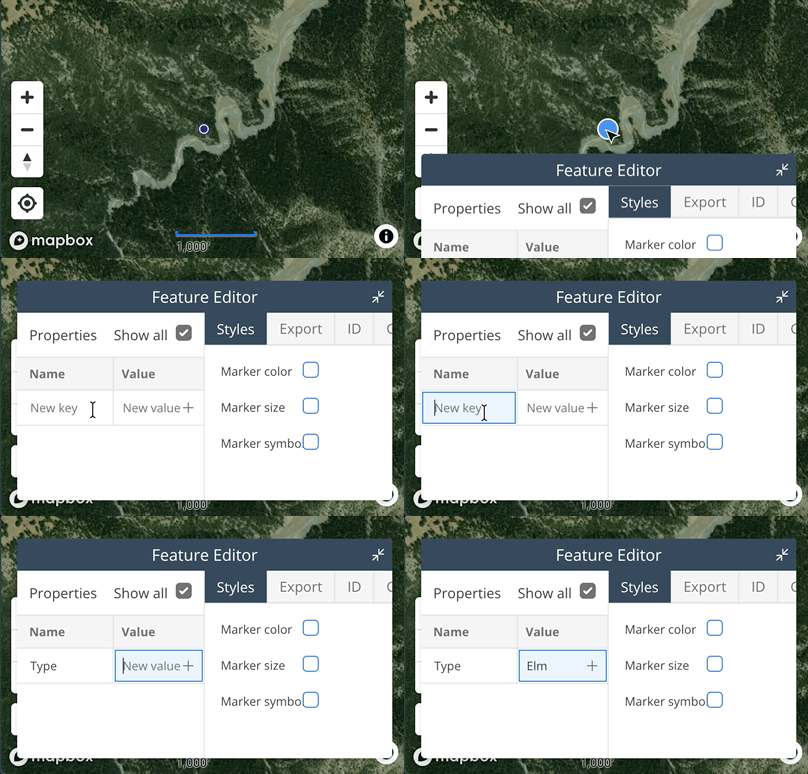
(Optional) While making features with geojson.io, you may want to record additional information about that feature, such as its name or the result of a test. To do this, you will need to add a “property” to a feature.
- Click on a feature in the map.
- In the “Feature Editor” below, look under “Properties”. In the first column of the table, enter a “Name” (e.g. “Type of tree”) and a “Value” (e.g. “White Oak”).
- Press the “+” sign and repeat for each property you want to add.
Adding a little extra information to a feature is reasonable in a map drawing tool, but you might want to use a tool that makes maps from surveys if you expect to record information to a lot of features.
Export your map file
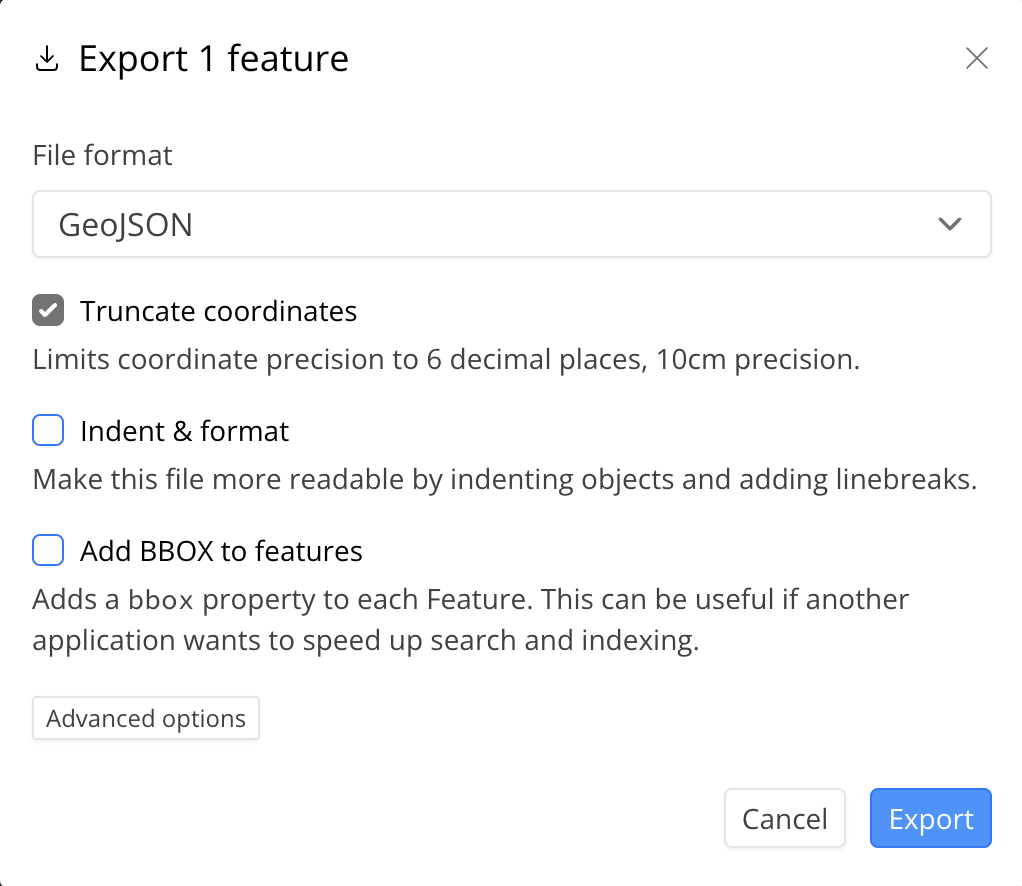
Once you have added features to the map, click on the “Export” button in the toolbar.
Pick your desired map file format. Most of the options are supported map file formats in Terraso Story Maps.
Click “Export” again to download a map file.
Making maps with forms
“Forms” enable the gathering of information in a structured format. Tools like KoboToolbox allow you to gather points, lines, and polygons and add data to them. Once your information is collected, you can export it as a map file.
Form tools are especially good for collecting information from the field, or gathering information in different places or from different sources. Most forms can be used both on large screens and on mobile devices. We recommend KoboToolbox as particularly useful because it can tap into your phone’s GPS to record location data as well as many other question types.
Using KoboToolbox forms
Setup
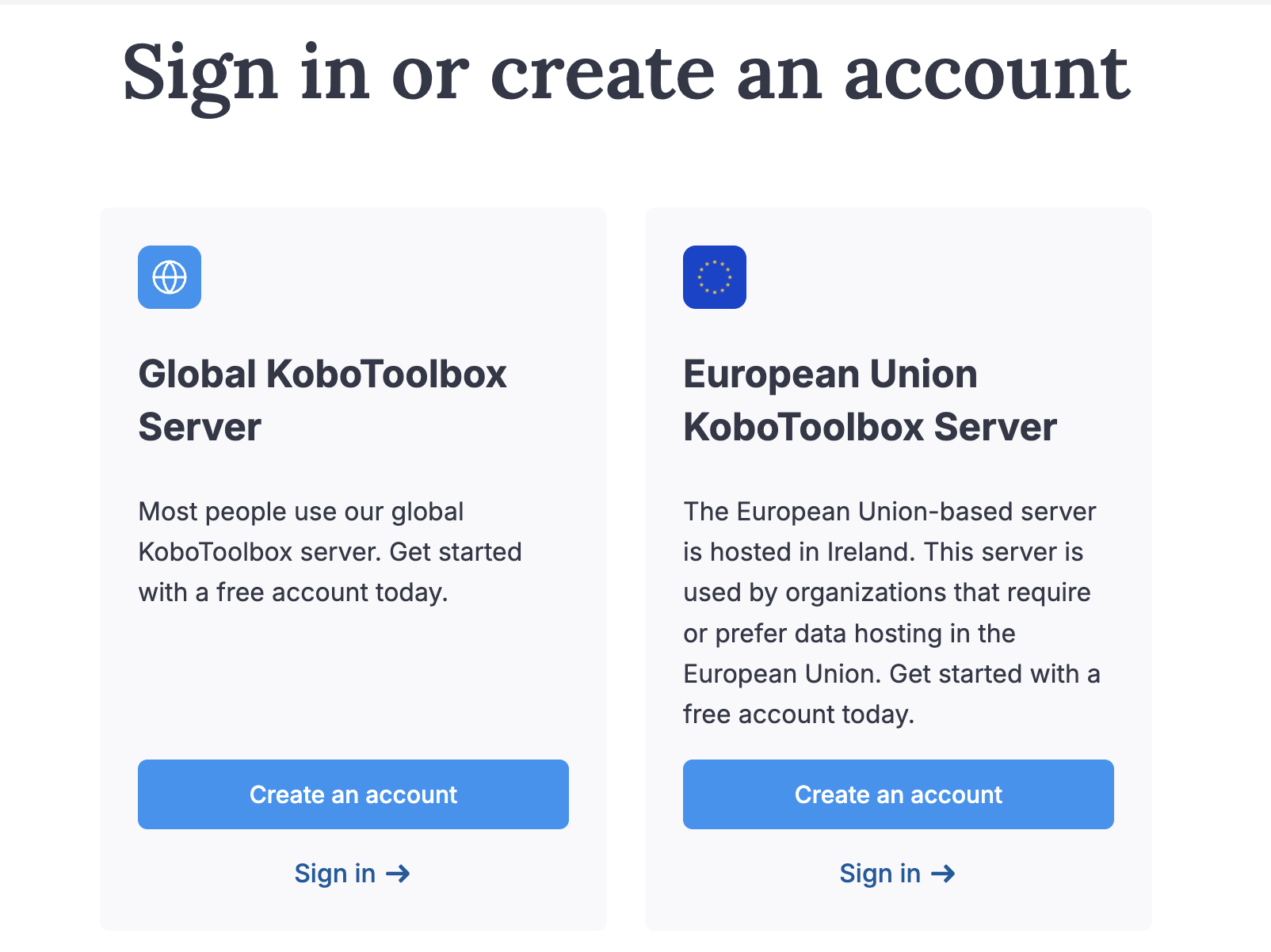
KoboToolbox requires a (free) account to use. Go to kobotoolbox.org and click “Get Started”. Create an account and sign in.
Make a project
KoboToolbox organizes surveys into “Projects”.
- Open the menu and click “New” to start a project.
- When prompted, click “Build from scratch”.
- Fill information about your project, including name, sector, and country.
Once you have finished you will land on the form editor screen.
To gather geospatial data, first create a form with the point, line, and polygon questions, and then deploy and use the form.

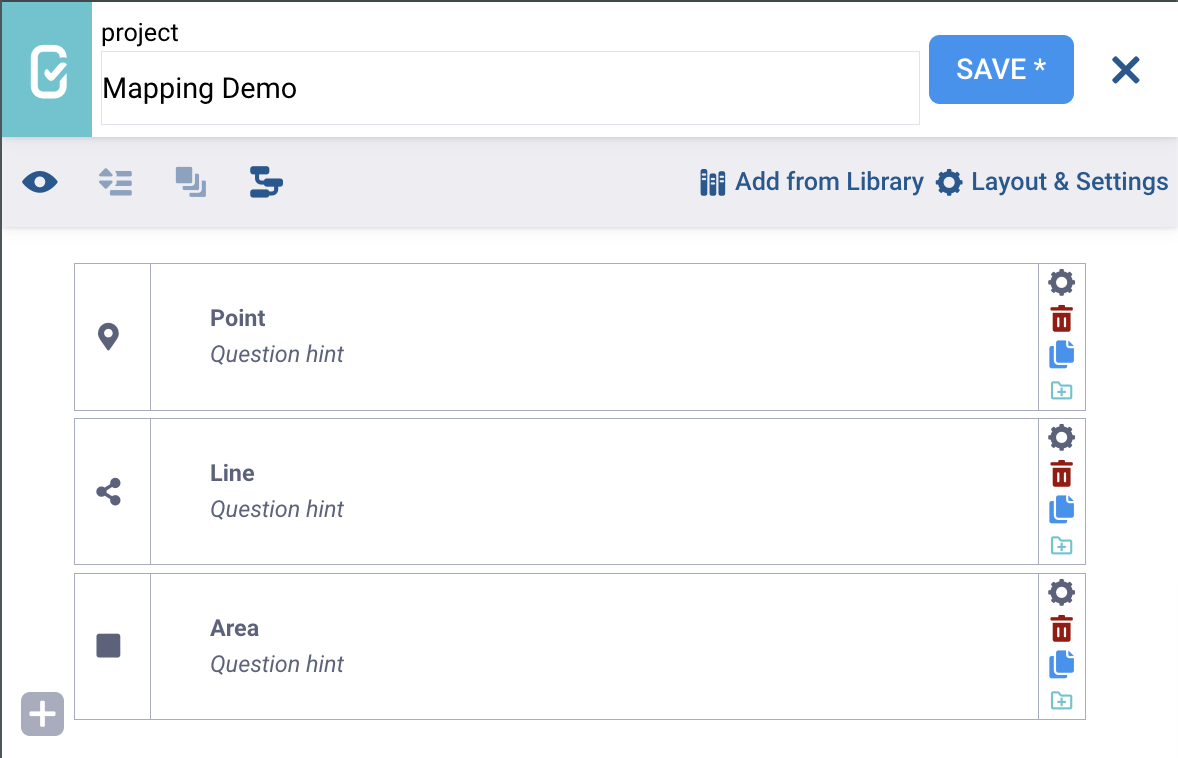
Create point, line, and polygon questions
- Click the “+” button to add a new question.
- Give the question a title, and click “+ Add Question”.
- Click “Point” from the options.
- Repeat the process to add “Line” and “Area” question types.
- Click “Save”.
- Tap the “X” button to return to the form manager.
Add more questions to the form to gather information about a feature (e.g., "name")
Deploy the form
You need to deploy this form in order to enter data.
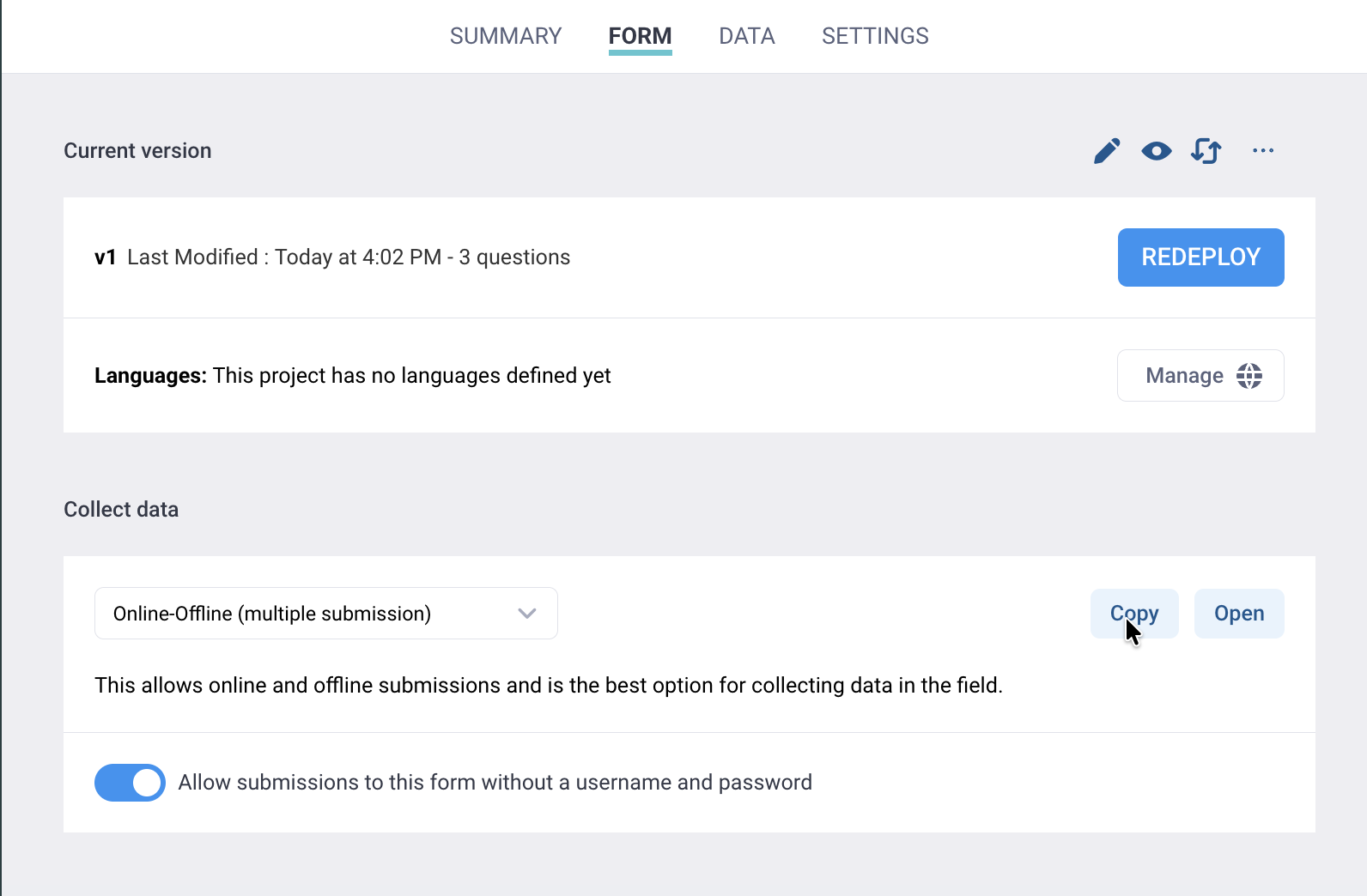
- Click the “Deploy” button. You’ll need to do this every time you update your form.
- Click the switch next to “Allow submissions to this form without a username and password” to make it so anyone with the link can enter data.
- Once the form is deployed, click “Copy” to obtain a link to the survey.
Different ways to gather data with KoboToolbox
KoboToolbox forms can be filled out in the browser, or in the KoboCollect app (Android only).
If using the form in a browser, allow the form to access your location when prompted.

Using KoboToolbox in a web browser
Working with a browser on your computer or your mobile device, you can enter location by either clicking/tapping on the map or by tapping the “crosshairs” button to use your device’s current location through either geoIP or GPS data.
If you are using a mobile device, this allows you to place points on the map using your physical location.
Points: Click or tap on the map or use the “my location” button.
Lines: Click or tap on the map in multiple places to create a line, or walk along a feature, periodically tapping the “my location” button.
Polygon: Click on the map in a series of locations, or walk around an area, returning to the starting point when you are finished. Click or tap the first point, or click “Close polygon”, to complete the shape.
Click “Submit” to record your form responses.

Using the KoboCollect app
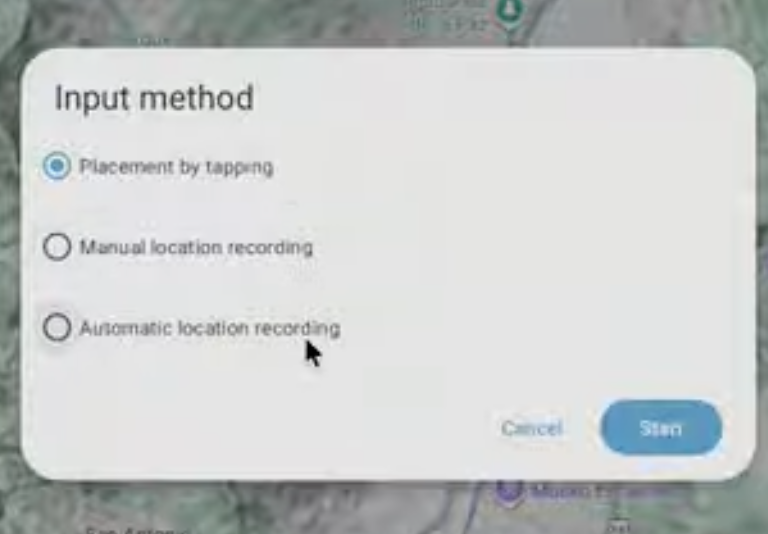
KoboCollect (Android only) allows users to passively gather location data. After signing in and opening a form, the user has the option to use “automatic location mapping”, where the tool will periodically record the phone’s current location. Use this feature to record the route of a trail, or to record the bounds of a parcel simply by walking around it.
Exporting data
After gathering data, download your data from the “Data” tab of your KoboToolbox project.
- On the project page, click the “Data” tab and click “Downloads” in the left sidebar.
- Click export type. If you’ve only collected point features, you can choose to export as an Excel or CSV file. If there are lines or polygons, choose to export a GeoJSON or KML file.
- Click “Export” to start the export. KoboToolbox will take a few moments to generate the map file.
- Once the map file is ready, click “Download”. If your browser opens the GeoJSON file rather than saving it, go to “File” > “Save Page As” in your browser menu to save the file.

Using your map file
Once you have a map file, you’re ready to make a map in groups or landscapes or add it as a map layer in a story map.